Object remover: brush it out, the background fills in
Remove unwanted objects from photos: brush over a tourist, a coffee cup or a power line, and the object remover erases it and rebuilds what was behind. The photo comes back at its original size.
Drop an image here
or paste it, or pick a file
No image loaded.
Three things gone, three backgrounds rebuilt
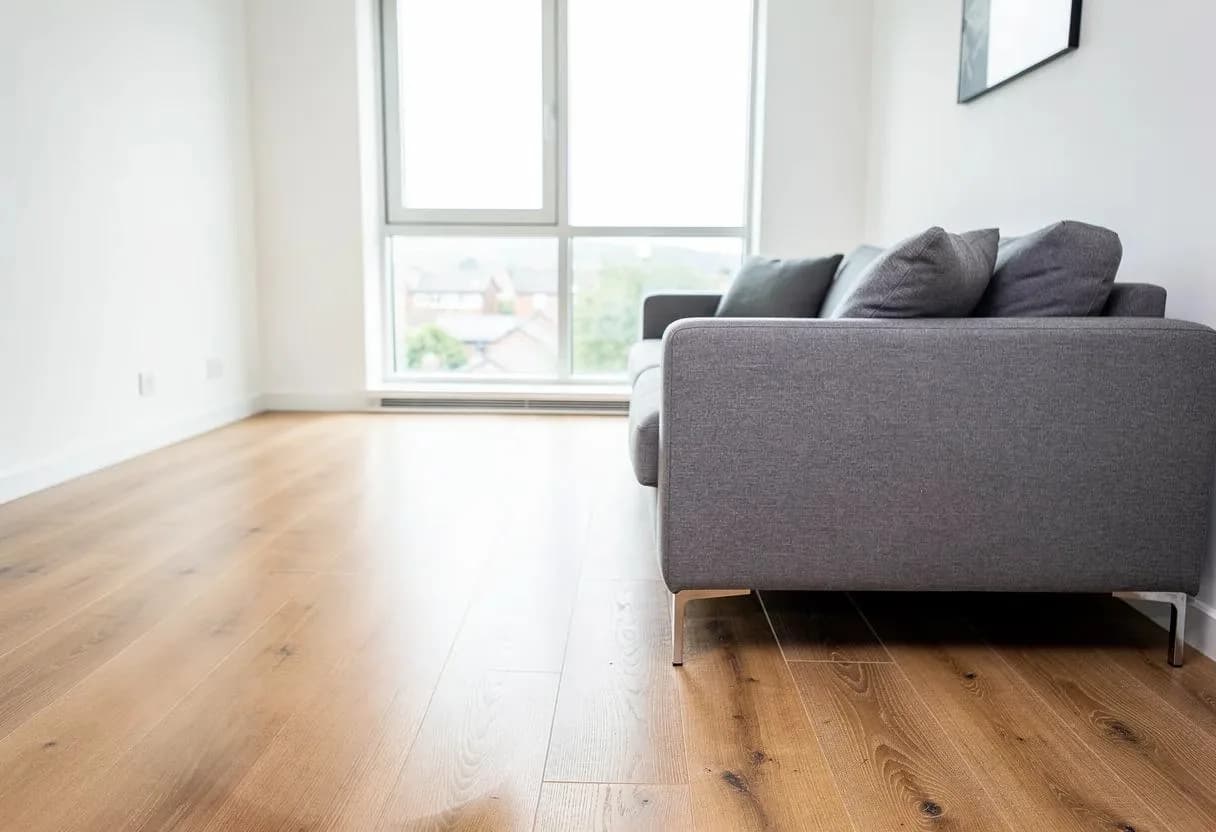
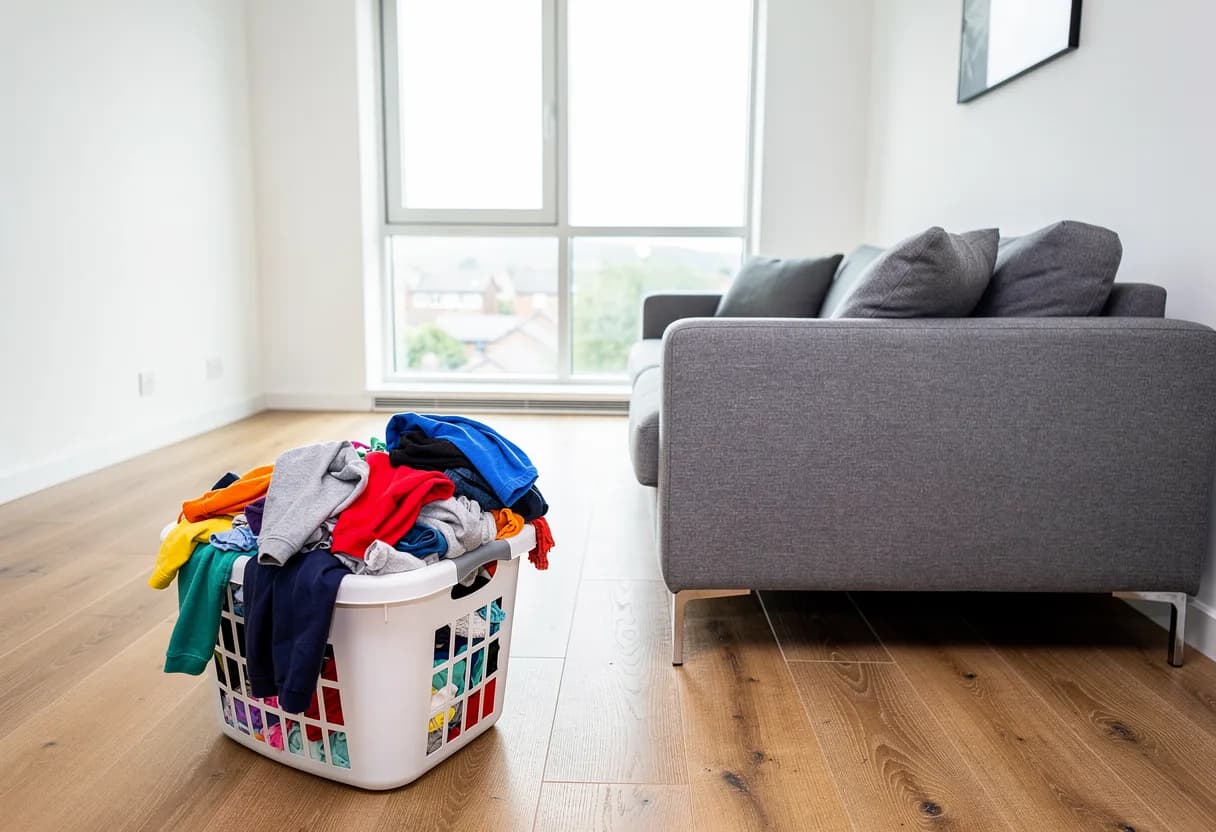
Drag across each photo to compare. Single runs of this tool with a brushed mask, nothing retouched. The photos were generated with AI for this page.




How to remove an object from a photo
- Step 1
Add the photo
JPG, PNG, WebP or an iPhone photo. The result comes back at exactly the same size.
- Step 2
Brush over what should go
Paint over the object, and its shadow and reflection too. Undo takes back a stroke; Clear starts again.
- Step 3
Erase and download
The model removes it and rebuilds the background behind it, usually in about 10 seconds. Drag to compare, then save.
What people remove
Tourists out of the shot
The stranger crossing the beach, the crowd in front of the monument. Someone against sky or sand is the easiest case.
Clutter off the table
The coffee cup, the cable, the receipt. Clean listings without a reshoot.
Rooms ready to list
Laundry, bins, cars in the driveway: the things that make a listing photo look lived-in in the wrong way.
Wires, signs and photobombers
Power lines across a sky, a sign behind a head, the person who walked into the group photo.
Tips for a clean removal
Filling in a removed area is called inpainting: the model paints the hole using what surrounds it. This tool runs Bria's eraser model, chosen because it returns your photo at exactly the size you uploaded. The brush matters more than anything else.
Paint past the edges
A little overlap onto the background works better than a tight outline. Leftover edge pixels are what give a removal away.
Include the shadow and reflection
Mark the shadow on the ground and any reflection in water or glass, or they stay behind as a ghost of the object.
Small and medium objects work best
The bigger the hole, the more background the model has to invent. A person on a beach is easy; half the frame is a guess.
Busy backgrounds are harder
Sky, sand, walls and floors rebuild cleanly. A crowd or detailed pattern behind the object asks more of the model.
Run again on a near miss
Each run fills the space afresh. If one leaves a smudge, run it again with the same brush strokes.
Other ways to clean up a photo
For a logo or text stamped over an image you're licensed to edit, use the watermark remover. To drop the whole background behind a subject instead, the background remover cuts it to a transparent PNG.
Frequently asked questions
How do I remove an unwanted object from a photo for free?
Upload the photo, brush over the object, and press erase. You get free runs every day with a free Leaxor account; after that, a run costs credits.
Can I remove a person from a photo?
Yes, it's the most common use. Someone standing against sky, sand or a plain wall comes out cleanly; someone in front of a busy background is harder, because more has to be invented behind them.
How do I choose what gets removed?
Paint over it. Whatever you mark is erased and the background is rebuilt behind it, so mark the whole object, including its shadow.
What if I mark the wrong thing?
Undo takes back the last stroke and Clear starts the marking over. Nothing runs until you press the button, so a mistake costs nothing.
Can I do it without a mouse?
Yes. Under the brush there's a panel that takes a rectangle as four numbers (left, top, width, height) and marks it. It's also the precise option when the thing you're erasing is already a neat rectangle.
Does it change the size of my photo?
No. The photo comes back at exactly the size you uploaded. We chose the model behind it partly for that: a faster one padded photos by a few pixels.
How big an object can it handle?
Small and medium objects fill in convincingly. A very large area is invention rather than removal: the result will be plausible, but the model is composing a background rather than recovering one.
Is my photo uploaded?
Yes, it has to be: erasing and filling in needs a model that can't run in a browser. The photo goes to the AI provider for that one job and isn't stored by us afterwards.
Other image tools
Fixing photos, or making them?
Leaxor draws new images from a sentence and turns them into video clips, on the same account.
See the image generator